Save & export
Save your changes or use Save As for a separate copy. Flattened and optimized export provide additional output options.
Flattening changes how interactive content is represented. Review the output before sharing.EXPLORE PELLUCID
Read it. Mark it up. Fill it in. Put the pages in order. The tools for your next step, together on your desktop.
THE DESKTOP WORKSPACE
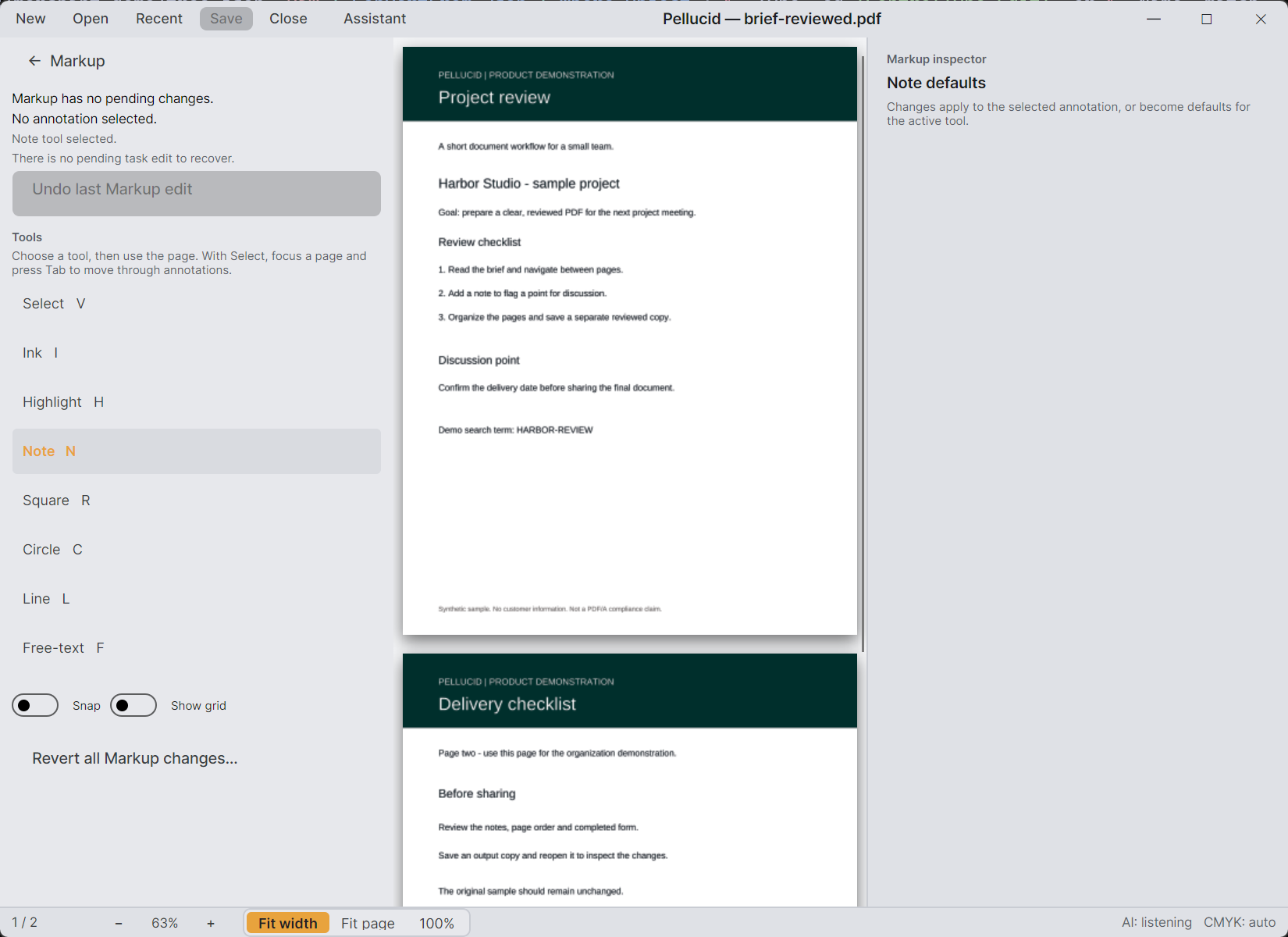
Move between reading, markup, forms, and page organization while keeping the document in view.
Existing Windows demo capture with a synthetic project document. Final release screenshots will follow.
01 / READ & FIND
Search the text, follow a bookmark, or jump to a page. Keep your place while you work through the document.
Text search works with text already in the PDF; it is not an OCR feature.
02 / MARK UP & REVIEW
Highlight a passage, leave a note, or draw attention to a detail. Review the PDF without turning it into another kind of document.
Free-text annotations add text on top of a page. They do not rewrite the original page text.
03 / FILL & DESIGN FORMS
Complete supported PDF form fields, or use the form-design workspace to create and edit fields of your own.
PDF form types differ. Unsupported forms may be inspect-only; this is not a promise to edit every XFA form.
04 / ORGANIZE PAGES
Bring the useful pages together and put them in the order you need. Work on the page collection without recreating the document.
Save As lets you keep an output copy separate from your original.
BEYOND THE EVERYDAY EDIT
Output and inspection tools for the documents that need more attention.
Save your changes or use Save As for a separate copy. Flattened and optimized export provide additional output options.
Flattening changes how interactive content is represented. Review the output before sharing.Edit title, author, subject, keywords, and language. Inspect fonts and tagged-PDF structure when you need to understand what’s inside.
Tagged-PDF inspection does not author tags or certify accessibility.Run PDF/A preflight, examine findings, and review supported fixes in the remediation workspace. Save a safe copy and check it again.
Supported repairs depend on the finding. Preflight is not a blanket guarantee of conformance.ANOTHER WAY TO WORK
Pellucid includes an assistant and a local MCP automation interface. Supported tools use the same document services as the desktop workflows, with trust settings, approvals, and audit controls.
Assistant use requires a configured provider. Provider availability, data handling, and any charges depend on that configuration.
A look at the current application. Pellucid is preparing for release. This page describes implemented workflows; final customer-package qualification is still in progress.
THE NEXT STEP
See the planned introductory price and what’s included in a Pellucid license.