PELLUCID PAGE-ORGANIZATION GUIDE
Two PDFs.
One review packet.
Start with a short brief and a supporting document. Put the background first, insert the supporting pages, rotate a sideways page, and save a five-page packet. Then extract the two supporting pages from the saved copy.
Use an active trial or eligible paid license. Download Pellucid if you haven’t installed it yet.
WATCH THE RELEASED APP
A review packet,
from start to saved copy.
A 67-second recording of Pellucid 1.0 on Windows using the practice PDFs. Silent, with on-screen captions. Idle waiting is trimmed.
Read the demonstration transcript
- Start with the three-page brief in Organize.
- Move Background before Next steps.
- Choose both pages from the supporting PDF.
- Insert the pages and rotate the note upright.
- Save a separate copy of the assembled packet.
- Reopen the saved five-page packet.
- Extract the selected original pages from the reopened packet.
- Check the separate two-page support PDF.
The recording ends with the Pellucid website address and the 14-day trial offer.
KNOW YOUR STARTING POINT
Three brief pages.
Two supporting pages.
The files are synthetic practice material. The illustrations below render those documents, not the app interface.
review-packet-brief.pdf
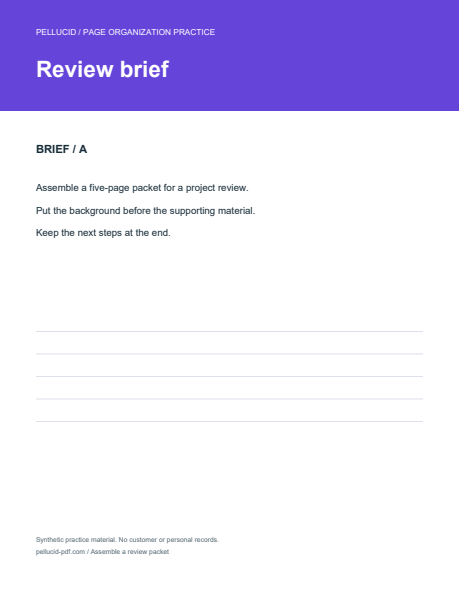
- 1Review briefBrief · A
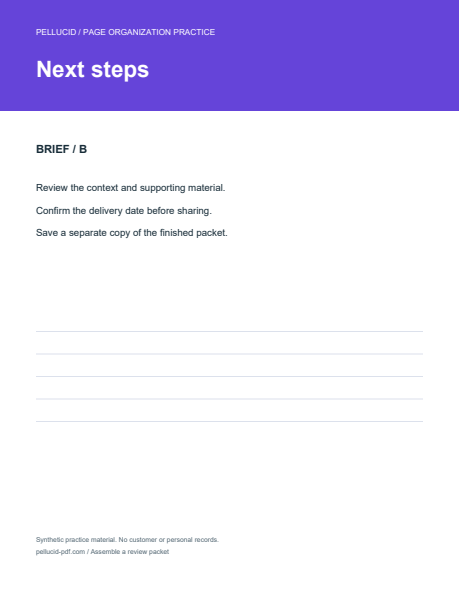
- 2Next stepsBrief · B
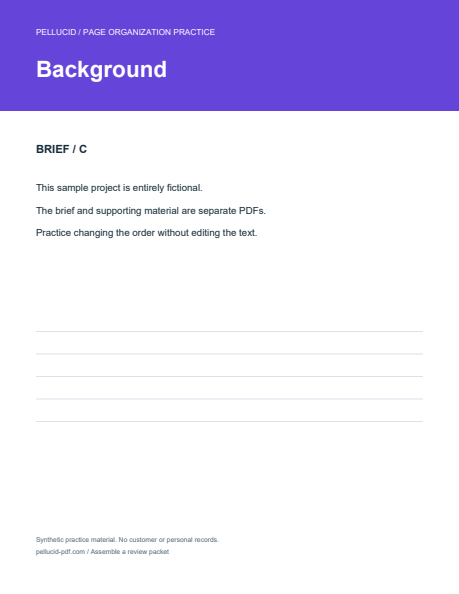
- 3BackgroundBrief · C
review-packet-support.pdf
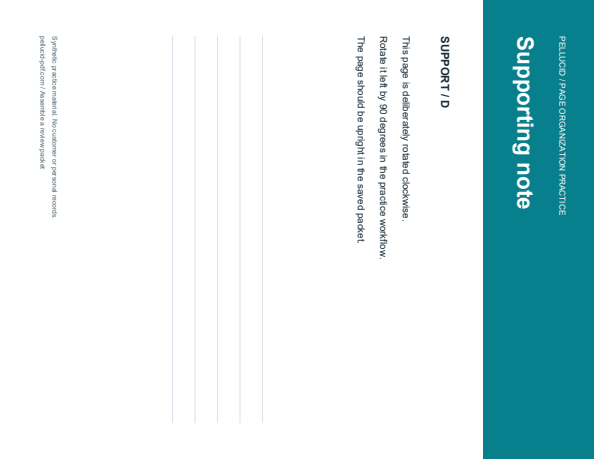
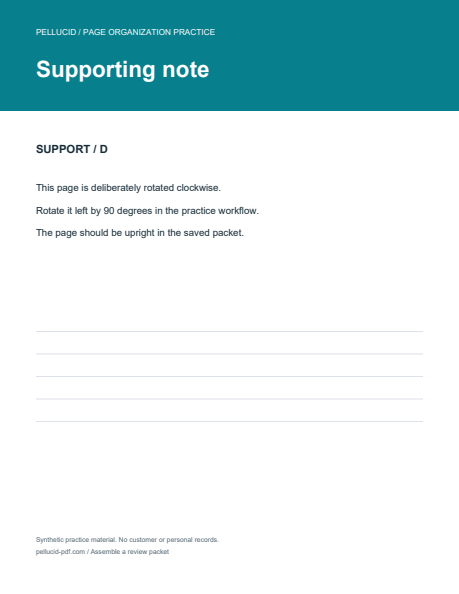
- 1Supporting noteSupport · D · sideways
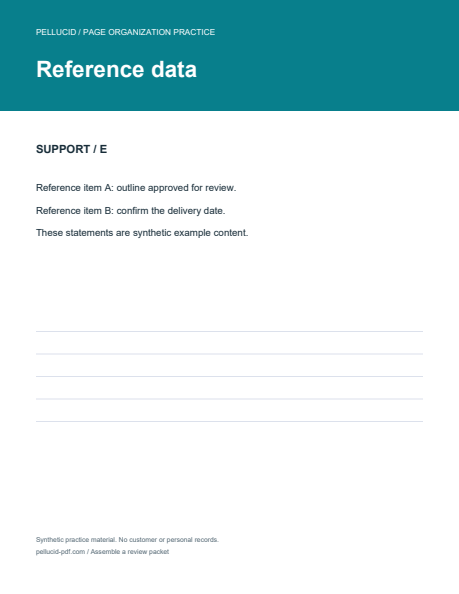
- 2Reference dataSupport · E
01 / PUT THE BACKGROUND FIRST
Move Background before Next steps.
Open review-packet-brief.pdf in Pellucid and choose Organize. Its starting order is Review brief, Next steps, Background.
- Select the Background page, currently third.
- Choose Cut selected pages.
- Click the Next steps page to focus the destination.
- Choose Paste before focused page.
The order should now be Review brief → Background → Next steps. You can also reorder by dragging selected page tiles. Use Undo last Organize edit if you move the wrong page.
02 / BRING IN THE SUPPORTING MATERIAL
Insert both supporting pages.
- Select only Background, now at position 2. The insertion destination is after the last selected page.
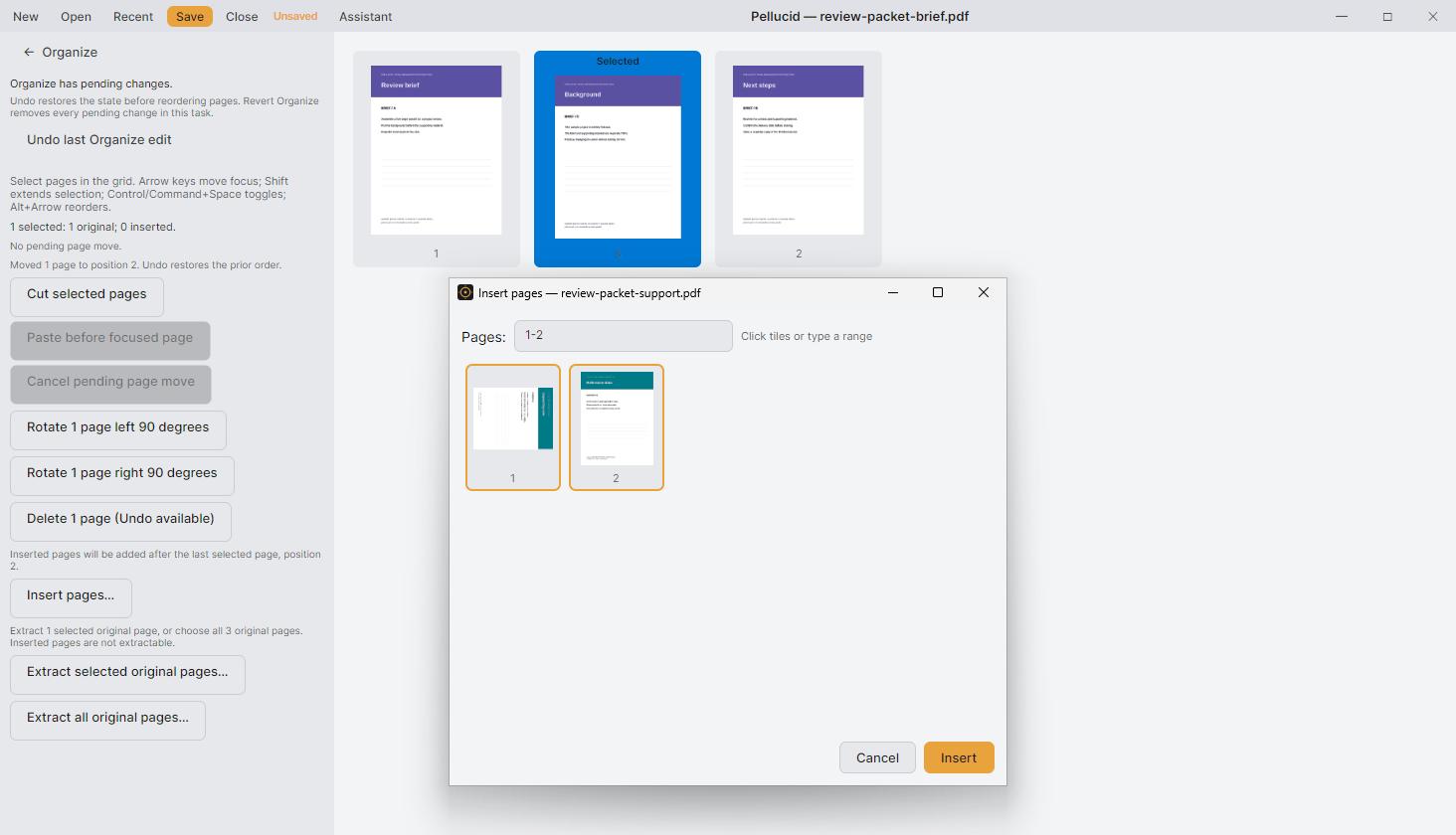
- Choose Insert pages… and open review-packet-support.pdf.
- In the source-page picker, keep both pages selected. You can use
allor1-2in the Pages box. - Choose Insert.
You should now have five pages: Review brief, Background, Supporting note, Reference data, Next steps. If the supporting pages landed somewhere else, select them and move them to the intended position.
03 / CORRECT THE ORIENTATION
Turn the note upright.
The Supporting note page is deliberately rotated clockwise in the practice file. Select only that page, now at position 3, and choose Rotate selected pages left 90 degrees.
Check that its heading and body text are upright. Selecting just that page avoids rotating Reference data along with it.
BEFORE YOU SAVE
This is the target order.
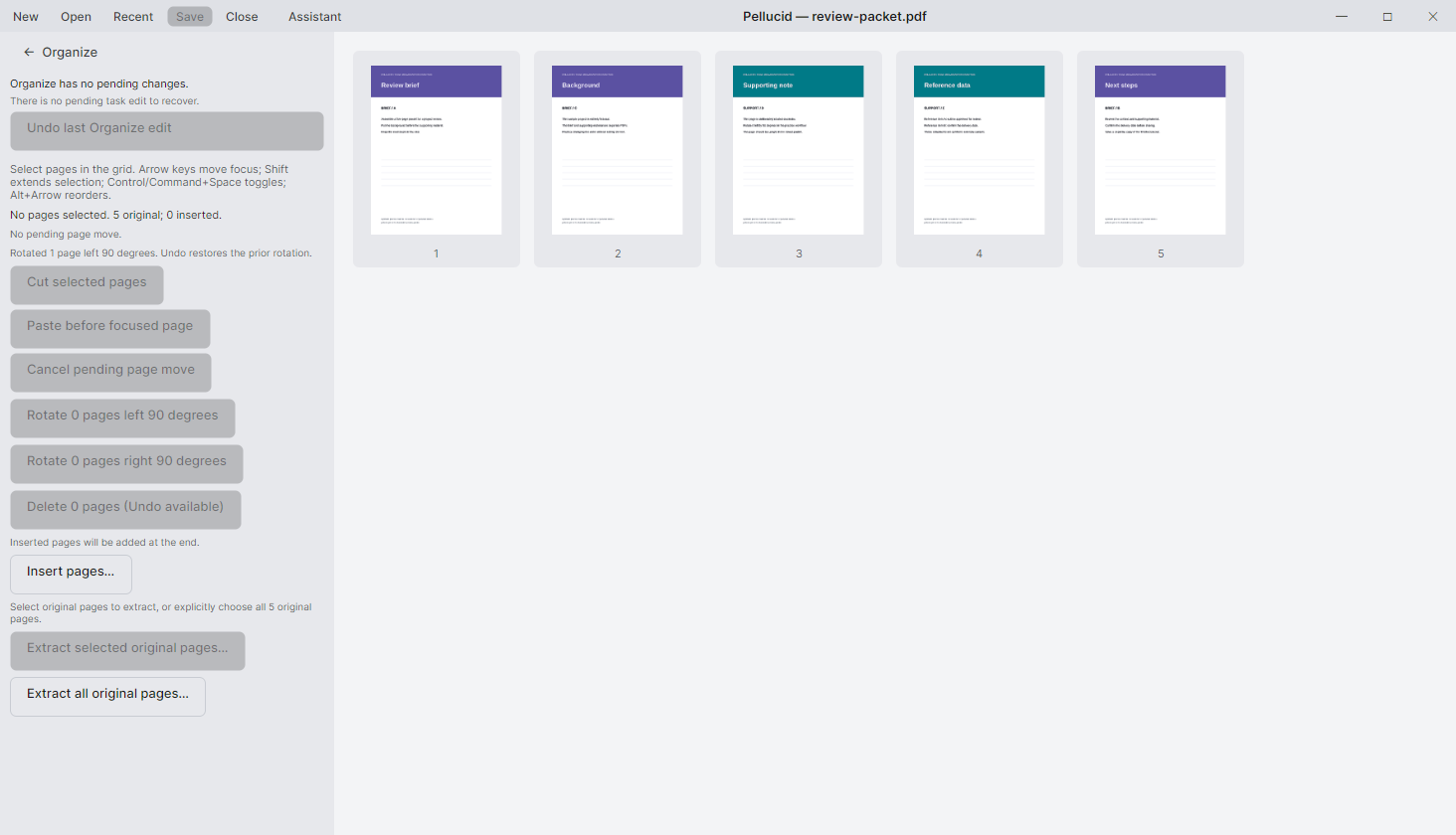
- 1Review briefBrief · A
- 2BackgroundBrief · C
- 3Supporting noteSupport · D · upright
- 4Reference dataSupport · E
- 5Next stepsBrief · B
04 / SAVE AND REOPEN
Make the packet its own file.
Choose the back arrow beside Organize. In the pending-changes dialog, choose Save As… and save as review-packet.pdf. If there are no pending changes, Save As is also available under Deliver. Keep the two downloaded source files for another practice run.
Close the document and reopen review-packet.pdf. Check that it has five pages in the target order and that Supporting note is upright. This saved copy is now the source for the extraction step.
05 / SHARE JUST THE SUPPORT
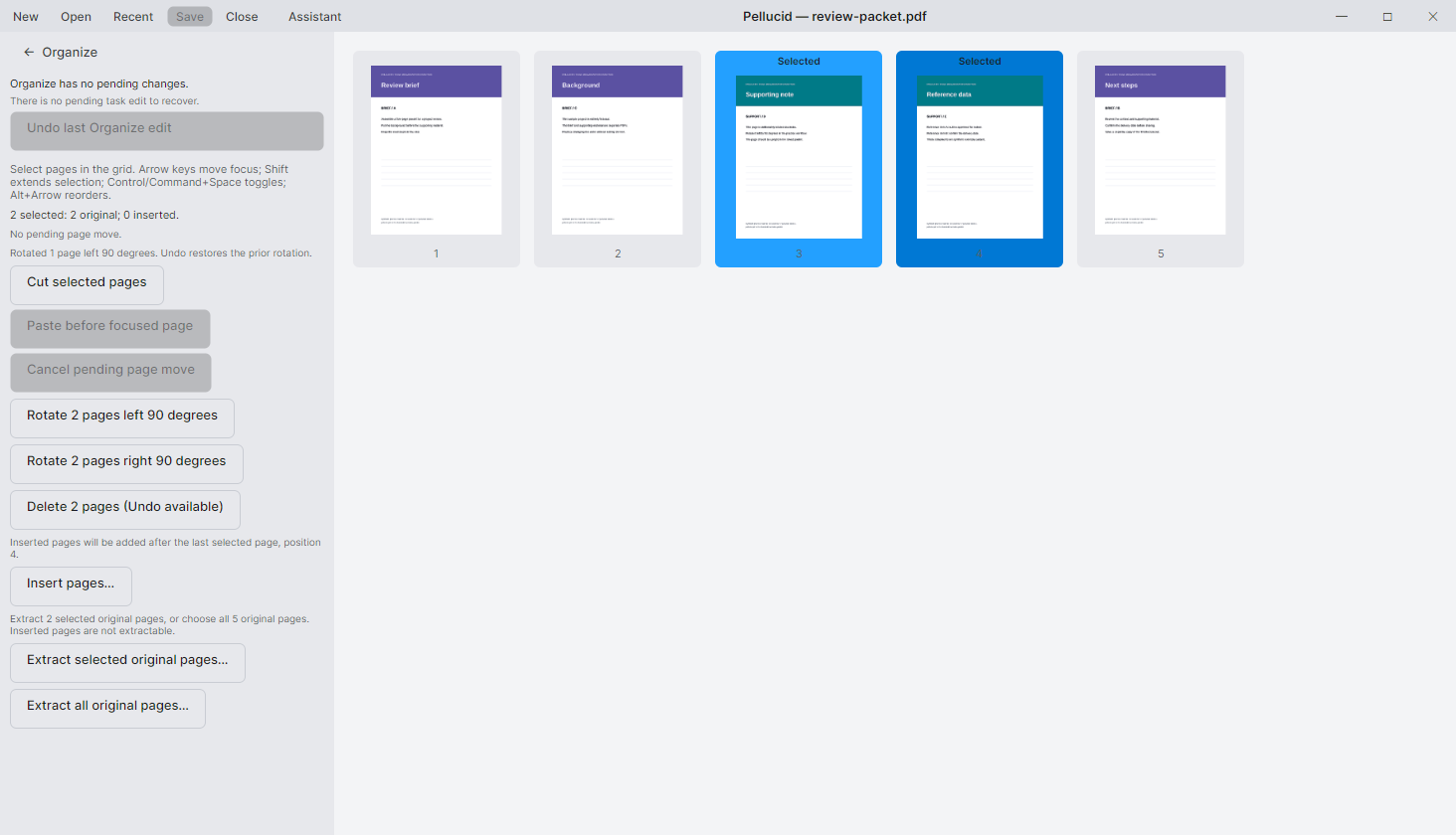
Extract pages 3 and 4.
- With the reopened review-packet.pdf active, choose Organize.
- Select Supporting note and Reference data, at positions 3 and 4. Click the first and Shift-click the second to select the contiguous pair.
- Choose Extract selected original pages… and save as
review-support-only.pdf. - Open the extracted file. Check that it contains two pages in the intended order, with the note upright.
Extraction creates a separate PDF; it doesn’t remove those pages from the saved five-page packet.
Extraction works on the open document’s original pages. Newly inserted pages aren’t directly extractable in that pending editing session. Saving and reopening makes the assembled packet, including its saved rotation, the document you’re extracting from.
OPTIONAL / MAKE A SHORTER VERSION
Remove a page from a copy.
To practice deletion, reopen the five-page packet, select Next steps, and choose Delete selected pages. Use the back arrow beside Organize and choose Save As in the pending-changes dialog to create review-packet-short.pdf, then reopen it and confirm it has four pages.
If you selected the wrong page, choose Undo last Organize edit before saving. Keep at least one page in the document.
IF THE RESULT DIFFERS
Check the selection and the source.
Paste is unavailable after I cut the pages.
Click the destination page after cutting. The move needs a new focused destination. Choose Cancel pending page move if you want to start the selection again.
Extract isn’t including the supporting pages.
Confirm that you saved and reopened review-packet.pdf rather than continuing in the original brief’s pending editing session. Select the two pages again in the reopened document.
Will this change the words on the pages?
No. These steps change the page collection and orientation, not the existing page text. Use annotations for review comments or forms for supported interactive fields.
USE IT ON YOUR NEXT DOCUMENT
A packet that’s ready
for someone else to read.
Try the workflow with your own PDFs during the 14-day trial, and check each saved result before sharing.
Explore page organization →