Combine PDFs
Choose Insert pages… to bring pages from another PDF into the open document. Select the source pages in the picker. They’re inserted after the last selected page, or at the end when none is selected.
PAGE ORGANIZATION IN PELLUCID
Bring pages from separate PDFs into one document, move the background ahead of the details, and turn a sideways page upright. Pellucid’s Organize workspace lets you work with the page collection.
ONE PACKET FROM TWO FILES
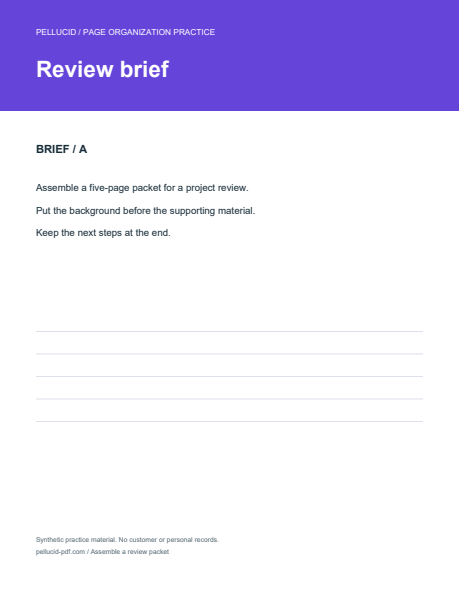
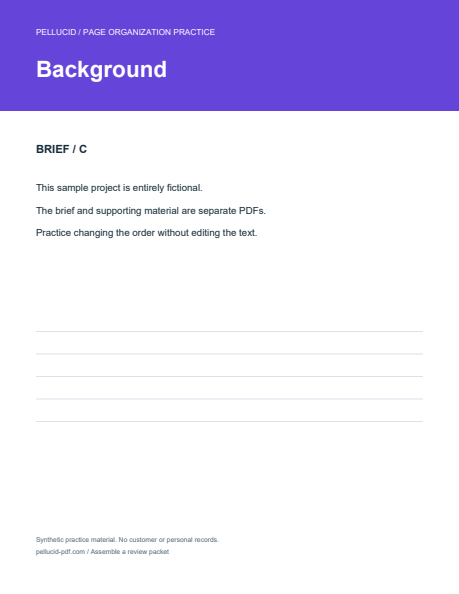
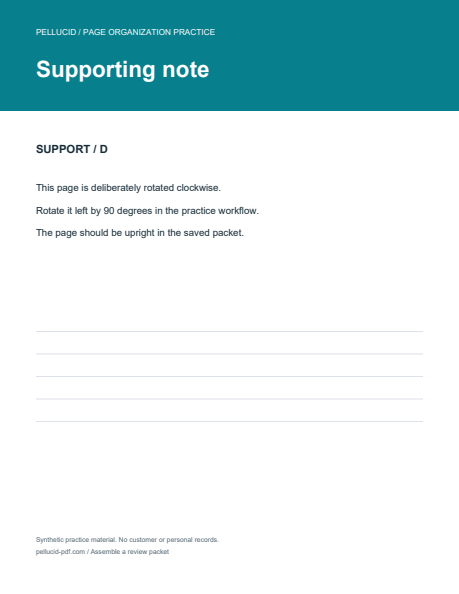
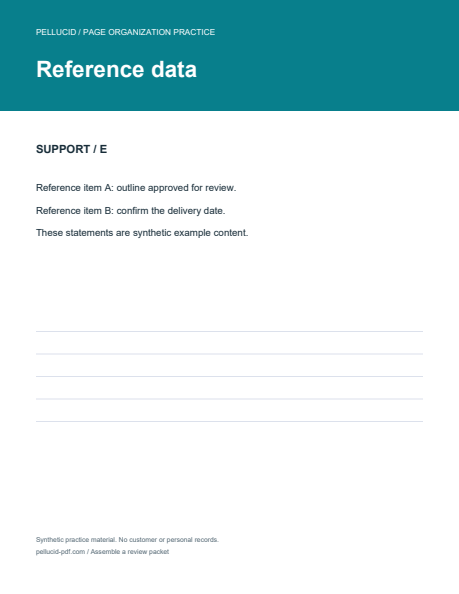
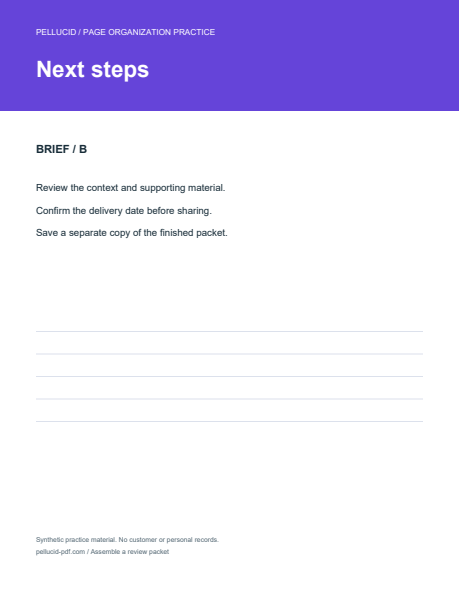
This example combines a three-page brief and two supporting pages into a five-page review packet.
CHOOSE WHAT NEEDS TO CHANGE
Open a PDF, choose Organize, and select the pages you want to work on.
Choose Insert pages… to bring pages from another PDF into the open document. Select the source pages in the picker. They’re inserted after the last selected page, or at the end when none is selected.
Drag selected pages to a new position, or use Cut selected pages followed by Paste before focused page. Choose a destination page after cutting so the move has a target.
Select the sideways pages and rotate them left or right in 90-degree steps. Check the thumbnails, then save the working document to retain the rotation.
SEND JUST THE RELEVANT PAGES
Choose Extract selected original pages… to write selected pages from the open document into a separate PDF. Extraction doesn’t remove them from the source.
Newly inserted pages aren’t included in that command’s original-page selection. If you’ve combined files or changed their order or rotation, save the assembled document, reopen it, and then select the pages to extract. That makes the saved packet the source for the extraction.
See the save–reopen–extract example →KEEP WHAT BELONGS
Select the page and choose Delete selected pages. If the selection was wrong, use Undo last Organize edit. Pellucid won’t delete every page in the document.
Use Deliver → Save As… for a separate output file when you want to keep the original. Removing a page from the working copy and saving over the original are separate decisions.
BEFORE YOU SHARE THE RESULT
No. Cut selected pages marks a pending move within the document. Focus a destination page and paste, or choose Cancel pending page move. This isn't a promise of cross-application clipboard transfer.
Not directly as inserted pages. Save the combined document, reopen that saved copy, and extract from it. See the guide for a two-page support extract.
They work on whole pages. Moving, rotating, inserting, or removing a page doesn’t rewrite its existing text. For comments, use annotation tools; for interactive fields, see PDF forms.
Reopen the output and check the page count, order, orientation, and content. Try your real documents during the trial, particularly if they include forms or other document features you need to preserve.
PUT IT TO WORK
Use two short practice PDFs to learn insertion, reordering, rotation, and extraction.